To make any image such as a banner clickable you will need to add HTML code to that image.
Here’s an example code that you can use:
<a href=”http://www.designleap.net”><img src=”image_name.jpg”></a>
replace www.designleap.netwith any website where you want the image to link to
replace image_name.jpg with your image name (if your image is in a subfolder make sure you include the correct location)
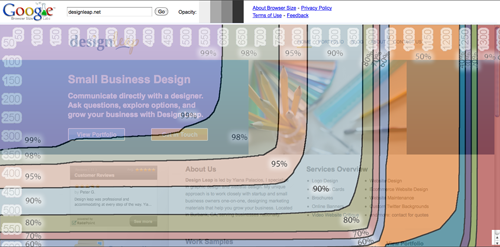
OK, so you understand the concept of showing your main website content above the fold on your website. Now you wonder “how do I display my main content to all the visitors the same if all of them have different browser size resolutions?” There’s a simple solution to what you probably thought was impossible to do.
To make sure that your main website content fits above the fold for your users, follow these steps:
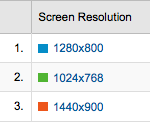
Check your analytics program to see what top 3 screen resolutions your users are using. Since you can’t please everyone, you can at least please the majority of your website visitors.
Installing an FTP client is beneficial when you want to transfer large files from your computer to your web server. To learn more about it, please see what is FTP. See the video or steps below on how to install and use the popular free FTP client for the Firefox browser called FireFTP.
Here are the steps to summarize how to install and use FireFTP:
Having a way to measure your website’s success is very important for all businesses. Google Analytics is free and easy to use, but many small business owners have no idea on how to install it. Take a look at the video below that shows you how to install Google Analytics.
To install Google Analytics all you need to do is follow a few simple steps:
Sign up for Google account.
Copy the provided code.
Paste the provided code right before the </body> tag on the page(s) that you want to track.
Save your code.
Upload the page to your server.
This is not a difficult process, but you have to know exactly where to place the code for it to work correctly.
Once the code is successfully uploaded give it at least 24 hours to take effect. Come back to Google Analytics to view your website’s progress.
When you have a business, you want your brand to be recognized in everything that you do. Having your business on Twitter is no different. By creating a custom Twitter background you will instantly stand out, bring credibility to your brand and leave a lasting impression to your visitors.
There are no set rules on how your background needs to look or what size it needs to be, but here are some pointers on what to do to keep that professional image.
• Keep all-important information on the left-hand side of the page.
• Always include your logo.
• Include your actual photo, this way you bring more trust and can result in more followers.
• Use colors that are similar to your brand to keep consistent.
• Use relevant images/graphics.
• Do NOT hard sell!
• Do list links of your websites, blogs, and other networking site where you can be found.
How to determine what size to make your Twitter background
The best way is to look at your website’s analytics program and see what are your visitor’s browser screen resolutions. Take a look at the top two and based on that, you can choose what would be the best size for your background. Keep in mind that the smaller the resolution, the less space you have for design.
The best approach to designing a custom Twitter background
Create everything in layers (it’s easier to make changes when you’re working with layers). This does not mean that you need to have Photoshop to do this. There are many free alternatives to Photoshop that perform just as great. I am recommending the “Phoenix” by Aviary.com as it’s very similar to Photoshop.
• Your first layer should be the main image, color or gradient that will serve as the pallet for your design.
• Next few layers don’t have to be in this order. You can start with the top banner that’s where you can add another color or gradient. This is where the Twitter logo and menu will sit so keep in mind the visibility when choosing colors.
• The last and most important step is to add your information to the left-hand side of the page and it’s best if you place this on it’s own layer.
Use one of these templates as a guide on proper placement of your information
1024 x 768 Template
1280 x 800 Template
Quick tip: Do NOT place important information below 600 pixels in height no matter the screen resolution size. This is because some users might have extra tool bars on their browser window, which pushes all the information down.
After you download the background template, open it in the design program of your choice and use it as bottom layer to server as a guide for you to place your information. When you’re done with your design, delete the layer with template. Save your design as GIF, JPG, or PNG format. Then go to your twitter page and follow these steps:
• Select Settings
• Choose the Design tab
• Click on Change background image
• Upload your image
• Make sure that tile background is NOT checked
• Save changes
Specific steps on how to change your domain DNS record varies from one provider to another, but basically all you have to do is ask your hosting provider for their DNS which will look something like this:
Primary Nameserver: ns1.hostingcompany.com
Secondary Nameserver: ns2.hostingcompany.com
Then you will need to go to your domain registrar (the place where you purchased your domain) and look for DNS change or something similar to this in the control panel. Some companies won’t let you do it through your control panel, so you would have to contact them and give them the new DNS names.
It’s important to remember that the actual update might take anywhere from 24-48 hours to change.
It’s best to use the “Magic Wand” when you’re working with an image that has a high contrasting color between the main graphic and the background. It works best when the background is a solid color.
Before we get started, you need to rename the “background” layer. This is the most important step to get this process right.
When you open your image you’ll notice that your layer in the Layers pallet is named “background.” You need to rename this layer to anything else besides “background.”
Here’s how to do this:
Double-click on the “background” layer, a pop-up window will appear, name the layer anything that you want or just leave it as Layer 0 and hit OK.
Ok, now you’re ready to remove that background layer.
Choose the “Magic Wand” tool and then start selecting the background. In our case it’s the blue sky behind the yellow flowers. Hold the shift key to select multiple areas at once.
NOTE: If you’re image has the high contrasting colors between the image and the background like we have, it’s best to set your “Tolerance” level to 100 and keep Anti-alias and Contiguous boxes checked. This will let you select the background easier.
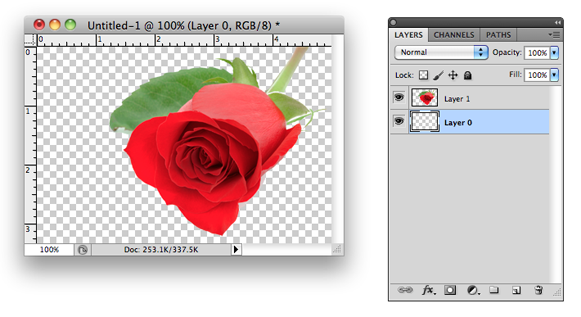
After everything is selected, hit delete on your keyboard and your background will be removed. Notice instead of your background you see the checkerboard pattern; in Photoshop this means that the background is transparent.
That’s it you’re done!
Just don’t forget to save your hard work.
Be more professional by getting a personalized e-mail for your company. In this tech savvy age having an e-mail address from a free e-mail provider such as Yahoo! or Google makes your company look unprofessional. Your small business will appear trustworthy if you have a personalized e-mail address.
Unprofessional
Professional
mycompany@yahoo.com
name@mycompany.com
To get started:
1. First you will need to choose and purchase a domain name. A domain name is also known as a web site address.
IMPORTANT:You don’t have to build a web site in order to use your domain name.
2. Set up your e-mail. Most domain providers will have instructions on how to set up your mailbox. I always suggest to setup a general mailbox for example: info@mycompany.com and then individual e-mails with personnel names for example: name@mycompany.com.